Skip to content
Photoroom MCP

Edit images in Claude with Photoroom
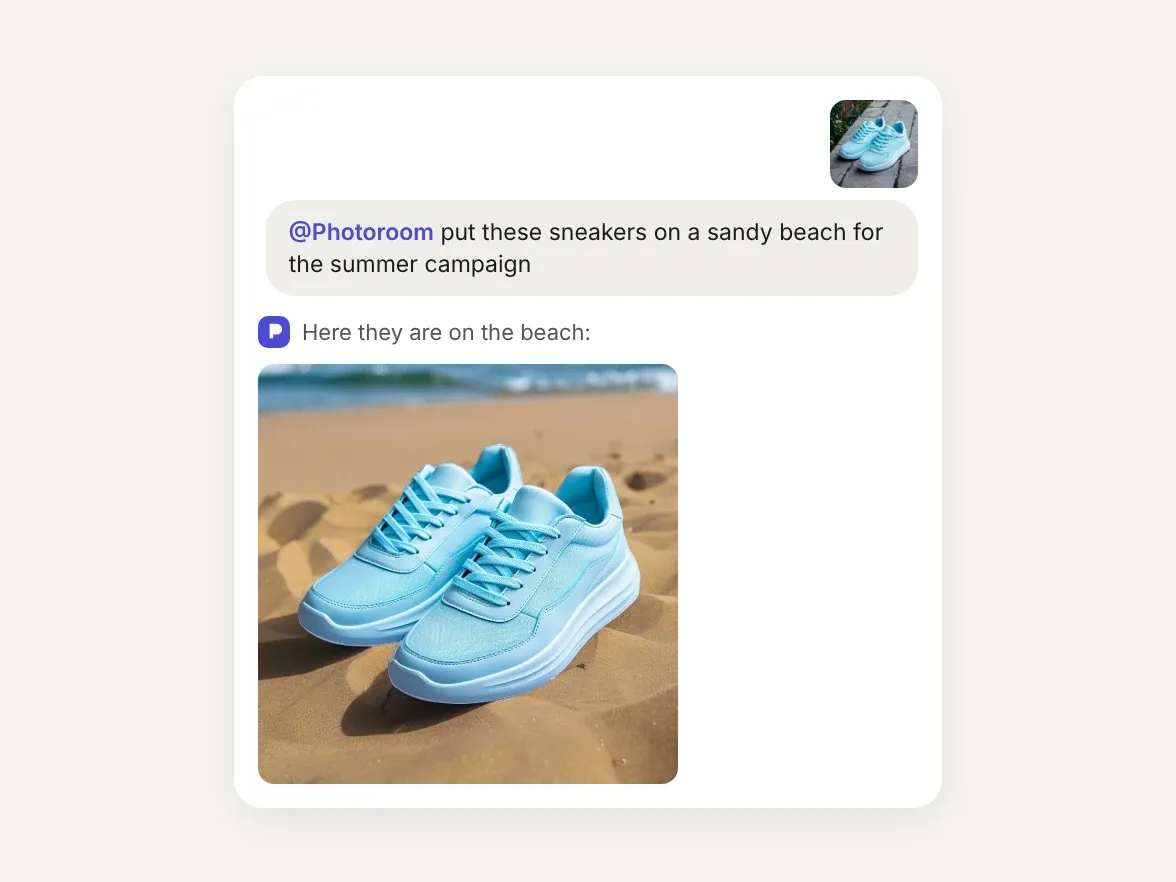
Add Photoroom as a custom connector, then ask Claude to remove backgrounds, stage products, put clothes on a model and more. Works in Claude, Cowork and Claude Code.
Chat asking Photoroom to put blue sneakers on a sandy beach, with the staged beach photo it returns

Add the Photoroom connector to Claude
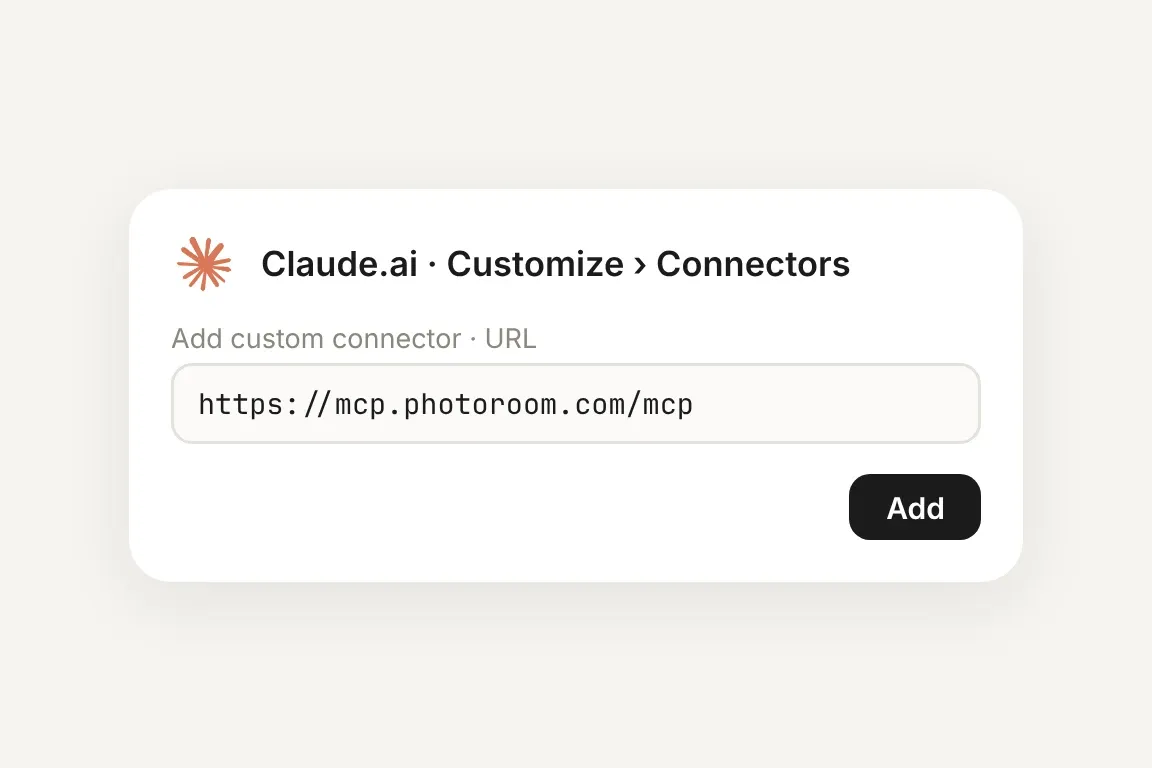
Sign in with your Photoroom account. With Pro, Max or Ultra, edits use your plan's credits; with an API subscription, use https://mcp.photoroom.com/mcp-api instead. Works on every Claude plan.
Claude.ai connector settings with the Photoroom server address entered
Claude.ai

Go to ‘Customize’, then ‘Connectors’. Click ‘+ Add’, choose ‘Add custom connector’, and paste https://mcp.photoroom.com/mcp.
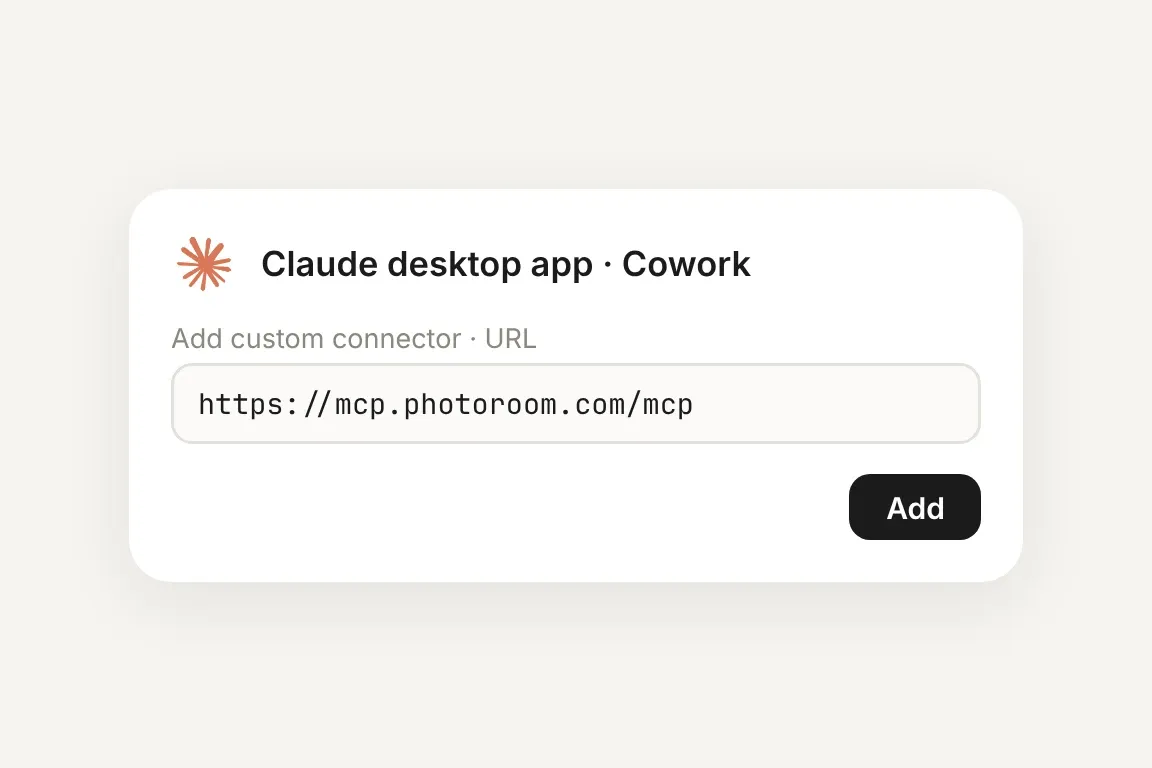
Claude desktop app connector settings with the Photoroom server address entered
Claude Cowork

In the Claude desktop app, go to ‘Customize’, then ‘Connectors’. Click ‘+ Add’, choose ‘Add custom connector’, and paste https://mcp.photoroom.com/mcp.
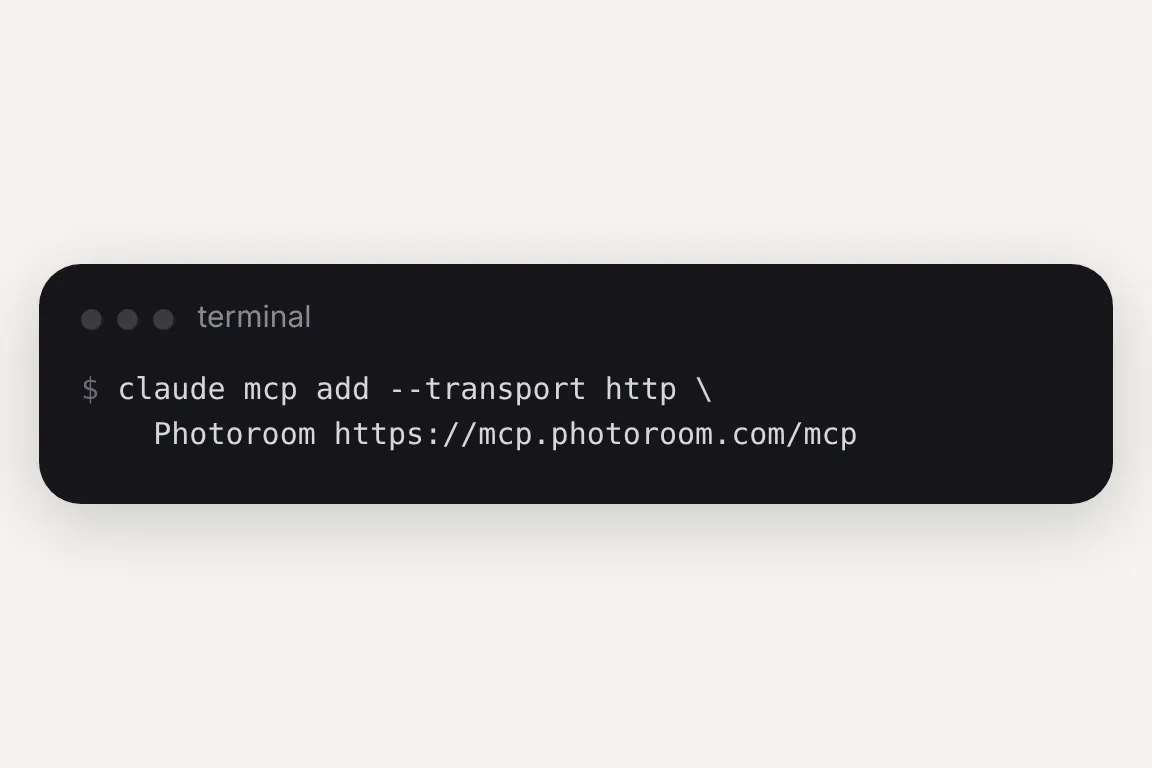
Terminal command that adds the Photoroom MCP server to Claude Code
Claude Code

Run this in your terminal:
claude mcp add --transport http Photoroom https://mcp.photoroom.com/mcp

With an API subscription, use the /mcp-api address instead. For batch edits and scheduled runs, see Photoroom in Claude Code.

Trusted by leading companies

Photoroom MCP or API connector: which to connect

Your Photoroom plan decides it, not the Claude app you use. Not on a plan yet? Pick by the work: asking for images suits Pro, Max or Ultra, and building edits into your own product suits an API plan.

Photoroom MCP, for Pro, Max and Ultra

Ask Claude for edits with the Photoroom app's tools: cutouts, shadows, ghost mannequin, virtual try-on and more. Edits use your plan's credits, with no API key to manage.

API connector, for API subscriptions

For developers and pipelines. Connect while signed in to your API space and Claude calls the Photoroom API with your key, on your API credits.

Enterprise, for catalog-scale teams

On an Enterprise plan, how you connect depends on your contract, which your account team will decide with you. Enterprise can also add tailored multi-tool workflows and checks on every output.

Claude image editing with Photoroom tools

Remove backgrounds, add shadows, stage new scenes, dress virtual models and much more, all from a chat. Describe the edit and Claude picks the right Photoroom tool, on one image or a whole folder.

Photoroom MCP

Connect the Photoroom MCP to the LLM where you work and automate your product listing visuals.

Background Removal

The AI background removal API detects complex edges, handles transparency, and delivers clean cutouts at scale - ideal for product catalogs and marketplace listings.

Virtual Model

Place apparel and accessories on AI-generated models that match your brand aesthetic. On-model imagery via the Virtual Model API: no casting, no studio, no production timelines.

Flat Lay

Generate consistent, editorial-quality flat lay product photography at enterprise scale. Maintain visual identity across thousands of SKUs through the Flat Lay API.

Ghost Mannequin

Produce ghost mannequin apparel shots with perfect shape retention through an AI-powered Ghost Mannequin API endpoint. Scale invisible mannequin photography without a studio.

Product Staging

Place your product into realistic lifestyle scenes - held, worn, or displayed - with the natural lighting and composition of a high-end photoshoot.

Edit With AI

Describe any change in plain language and our AI makes it - swap colors, remove or add objects, restage the scene, or shift the camera angle.

Product Beautifier

Enhance low-quality product and food images automatically with the Beautifier API. No retouchers, no studios. Our AI restores detail, corrects color, and improves overall quality at scale.

Add Shadows

Add realistic shadows to the main subject of your image, with complete control over the softness, intensity and position of the shadow.

Generate Backgrounds

Dynamically create new backgrounds with our first-class generative AI, perfectly matching the subject of the original picture.

Relighting

Fix badly lit photos automatically. Our AI rebalances over- and under-exposed images, with modes that keep product colors accurate or optimize for portraits.

Text Removal

Remove watermarks, labels, and real-world signage from your images automatically - choose what goes and what stays.

Expand

Resize any image to any format without cropping. Our AI generates the extra background to match the original, filling every empty pixel seamlessly.

Uncrop

Recover subjects clipped by the frame. Our AI reconstructs the missing parts from the visible portion, automatically.

Ironing

Make every garment look freshly pressed. Our AI smooths creases and wrinkles out of clothing photos automatically - no steamer, no reshoot.

Create Any Image

Generate images from a text description alone - no source photo needed. Describe the scene, pick a format, and get original content back.

Uncertainty Score

Know when a cutout needs a second look. Every response returns a confidence score from 0 to 1, so you can auto-flag ambiguous images for review at scale.

Perspective Correction

Straighten angled shots of flat, rectangular products - cards, books, games - into clean, straight-on views. No generative AI, so hallucinations are impossible by design.

Positioning

Control exactly where the subject sits in the result - scaling, alignment, padding, and margins - so every image in a catalog comes out consistently framed.

Smart Cropping

Reframe images around the subject automatically - prompt it to focus on a specific element, or crop faces out for marketplace compliance.

Upscale

Turn small, low-res images into sharp ones at 4× the size - with a fast mode for volume and a slow mode for maximum quality.

What Photoroom adds to Claude

Claude handles the conversation and Photoroom does the editing. Ask in plain English and get finished product images back in the same chat, one at a time or a whole folder at once.
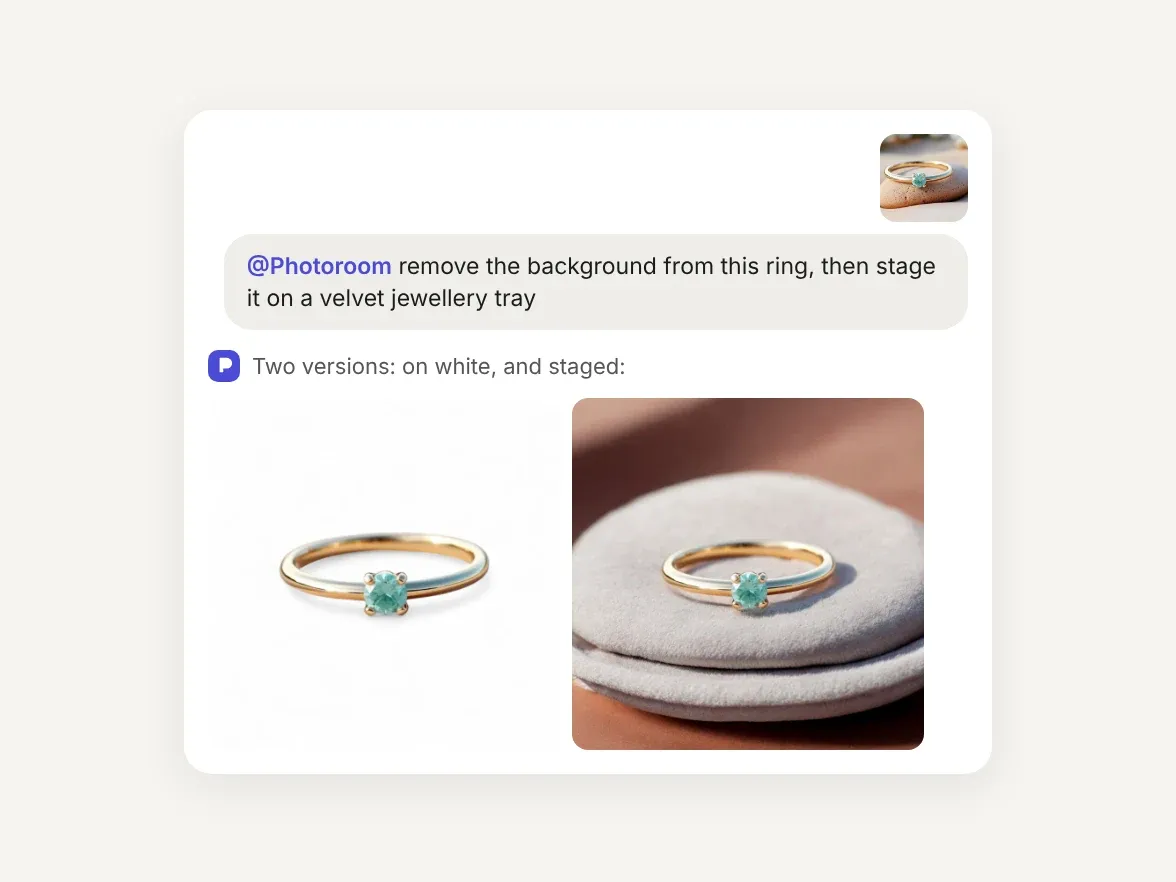
Chat asking Photoroom to cut out a ring and stage it, with the ring on white and on a velvet tray

Yes, Claude can edit images with Photoroom
Connect Photoroom and Claude can edit your product photos. It can remove the background, add realistic shadows, stage the product in a new scene or put clothing on a model, and much more. Upload an image or share a link, describe the edit, and the result comes back in the same chat.

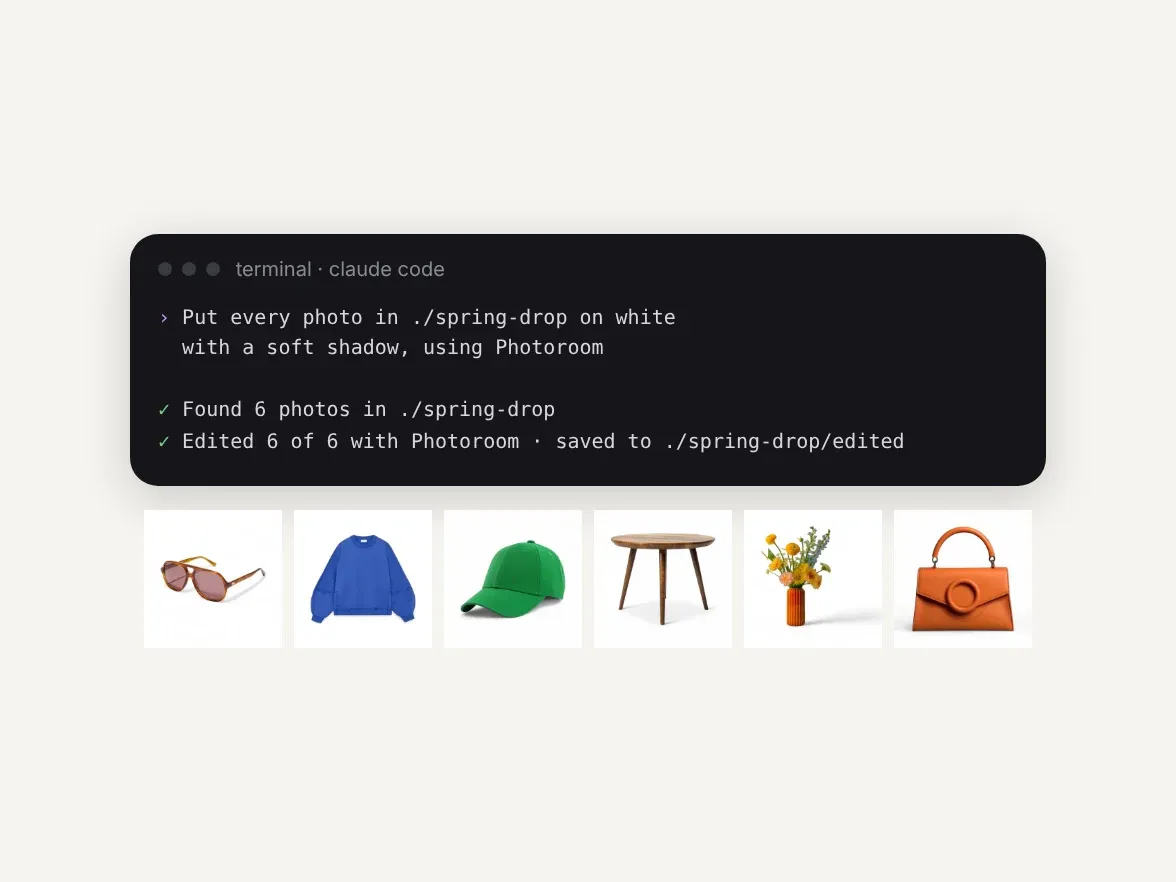
Claude Code putting a folder of six product photos on white with Photoroom, and the six results

Batch edit product images from Claude Code
Add the connector with one command, then point Claude Code at a folder or a list of URLs. On an API plan, connect the API connector and Claude Code calls the Photoroom API for each image, so you can edit a whole catalog without building an integration. Building something permanent? Give Claude Code our ready-made prompt and it writes the integration for you.

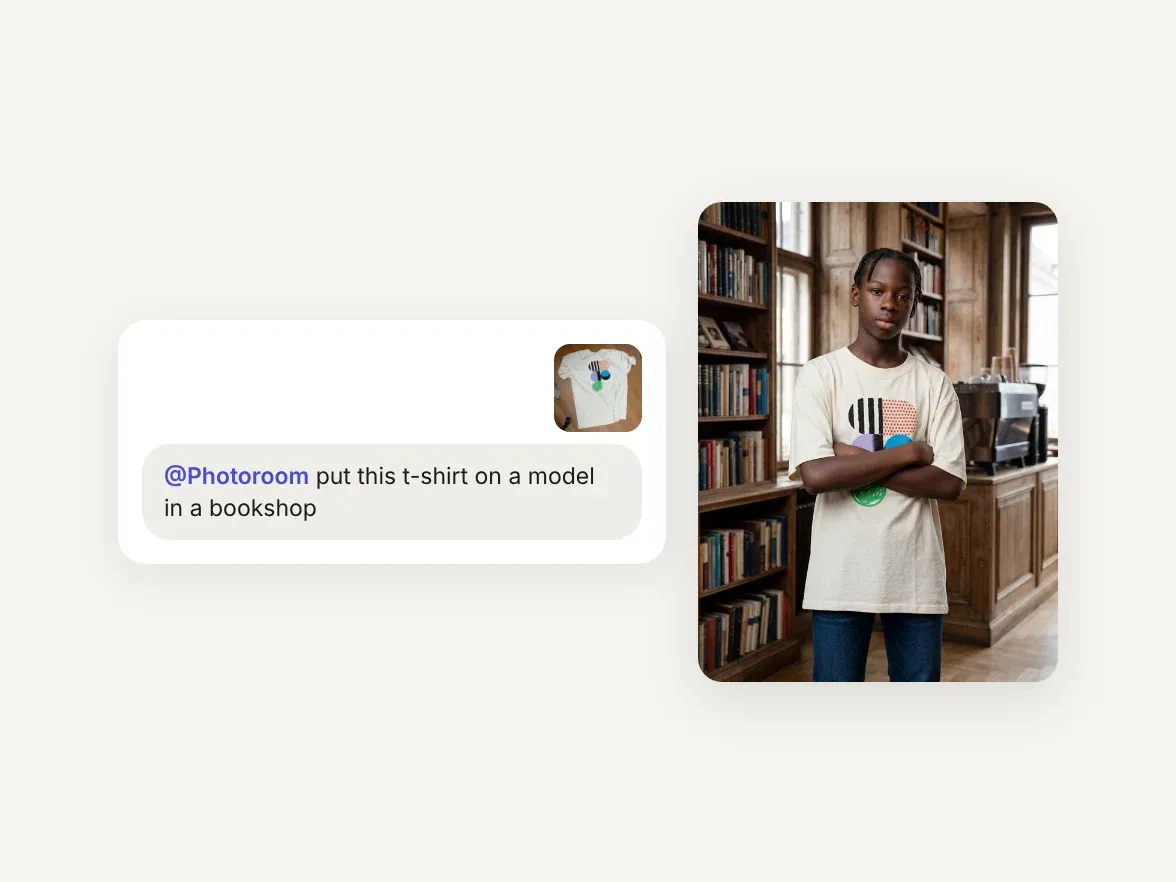
Chat asking Photoroom to put a t-shirt photographed on a floor onto a model in a bookshop

Put your clothing on AI fashion models

Replace expensive model photoshoots by asking Claude to put your garments on AI fashion models. Give your favorite inspiration and let Claude replicate it for your brand.

Product photo editing in Claude
Start with a clean cutout, then keep going in the same chat: add a shadow, restage the scene, put it on a model, or turn it into a video.
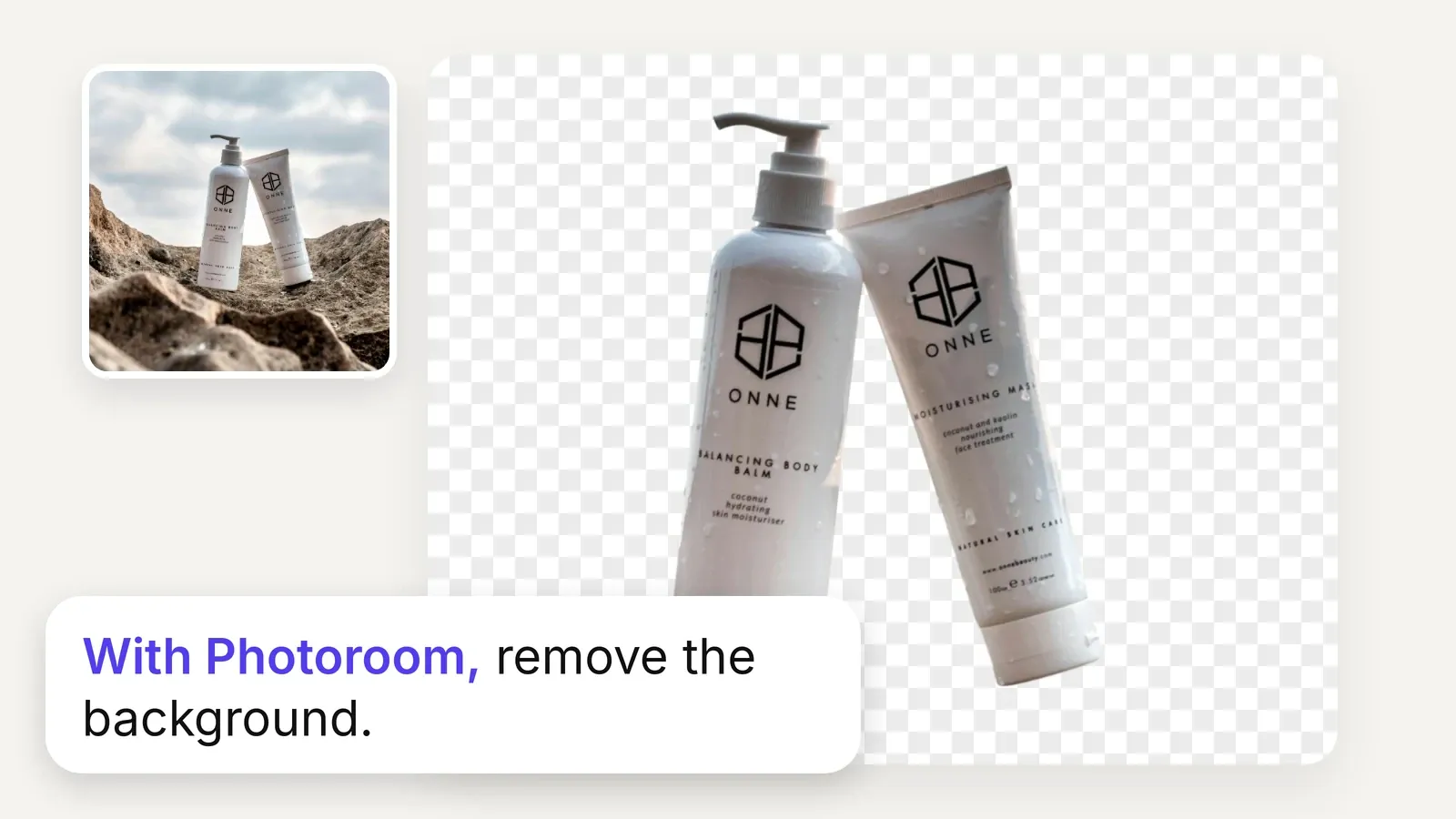
Skincare bottles on rocks, then cut out on a transparent background, with the prompt: remove the background
Remove Background
A clean cutout, ready for any banner or template.
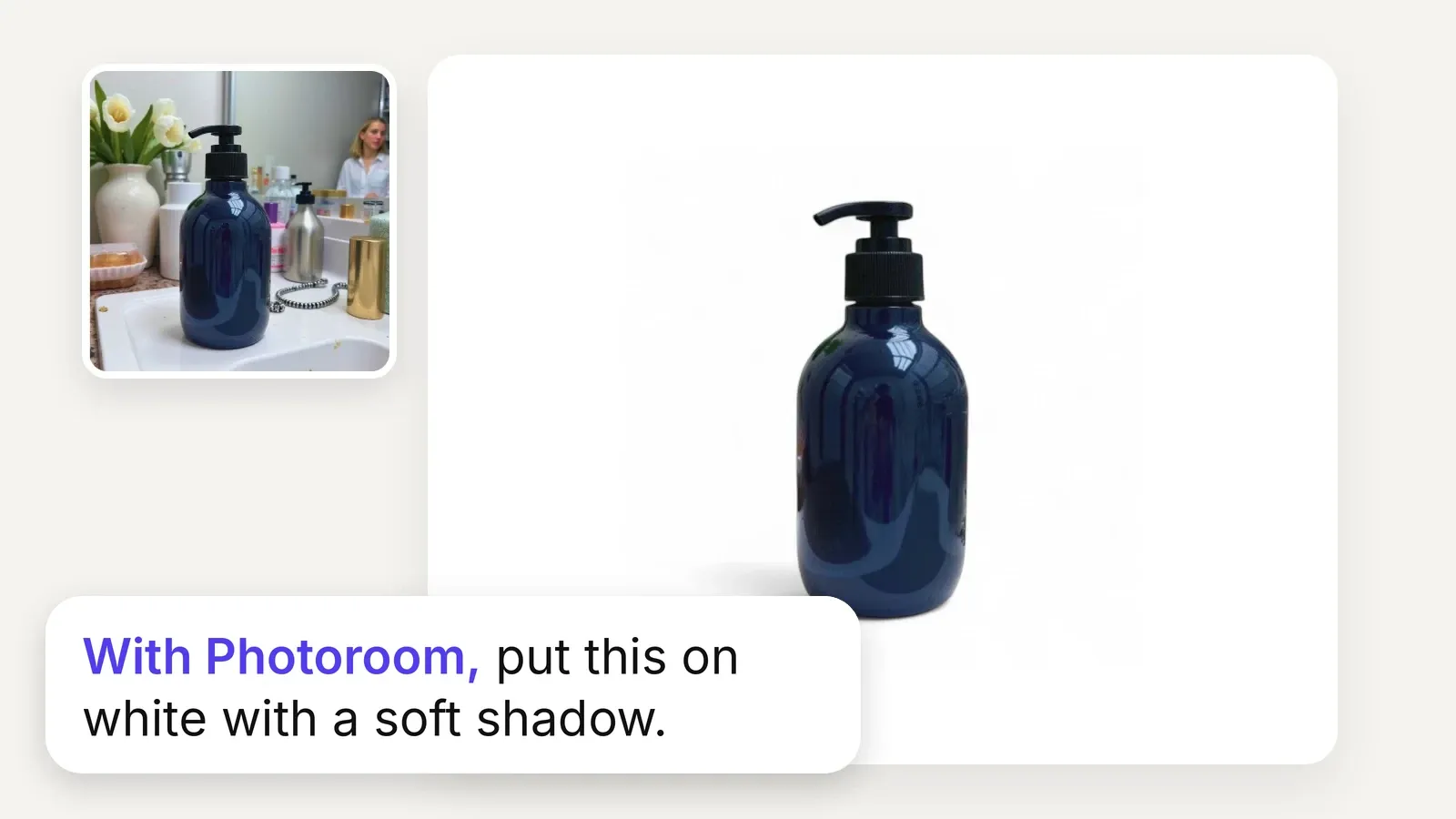
Pump bottle on a cluttered bathroom counter, then on white with a soft shadow, with the prompt to add one
AI Shadows
White-background listings that don't look flat.
Orange cap on a street ledge, then as a polished studio shot, with the prompt: make this look like a studio shot
Pro Shot
Phone photos become polished product shots.
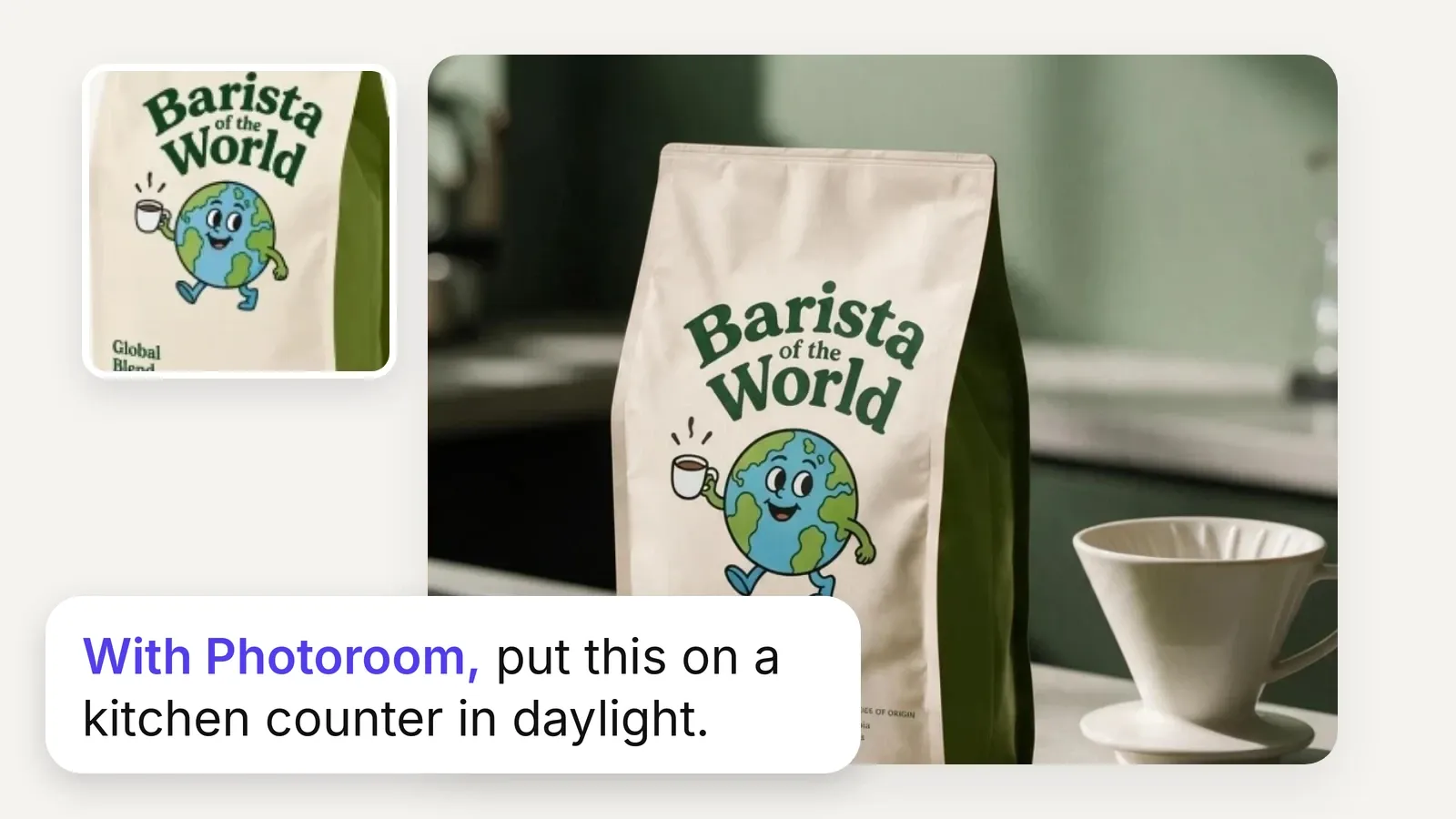
Coffee bag photo, then staged on a kitchen counter in daylight, with the prompt asking for that scene
Subject Edits
Any scene you can describe, no set needed.
Dress laid flat with accessories, then worn by a model on a sunny terrace, with the prompt: show this on a model
Virtual Try-On
On-model photos without booking a shoot.
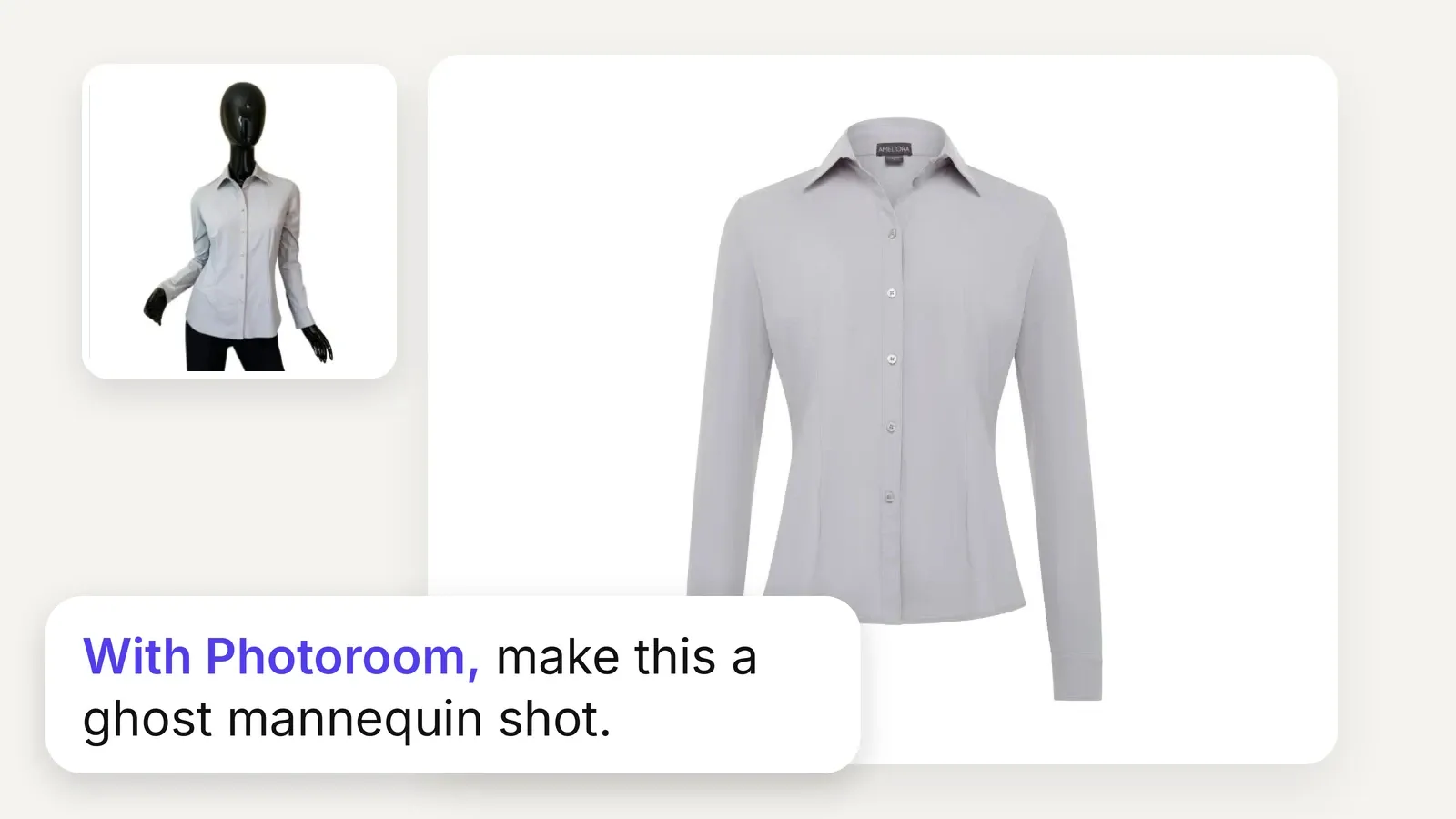
Gray shirt on a black mannequin, then as a ghost mannequin shot, with the prompt asking for one
Ghost Mannequin
The fit of the garment, with no mannequin in sight.
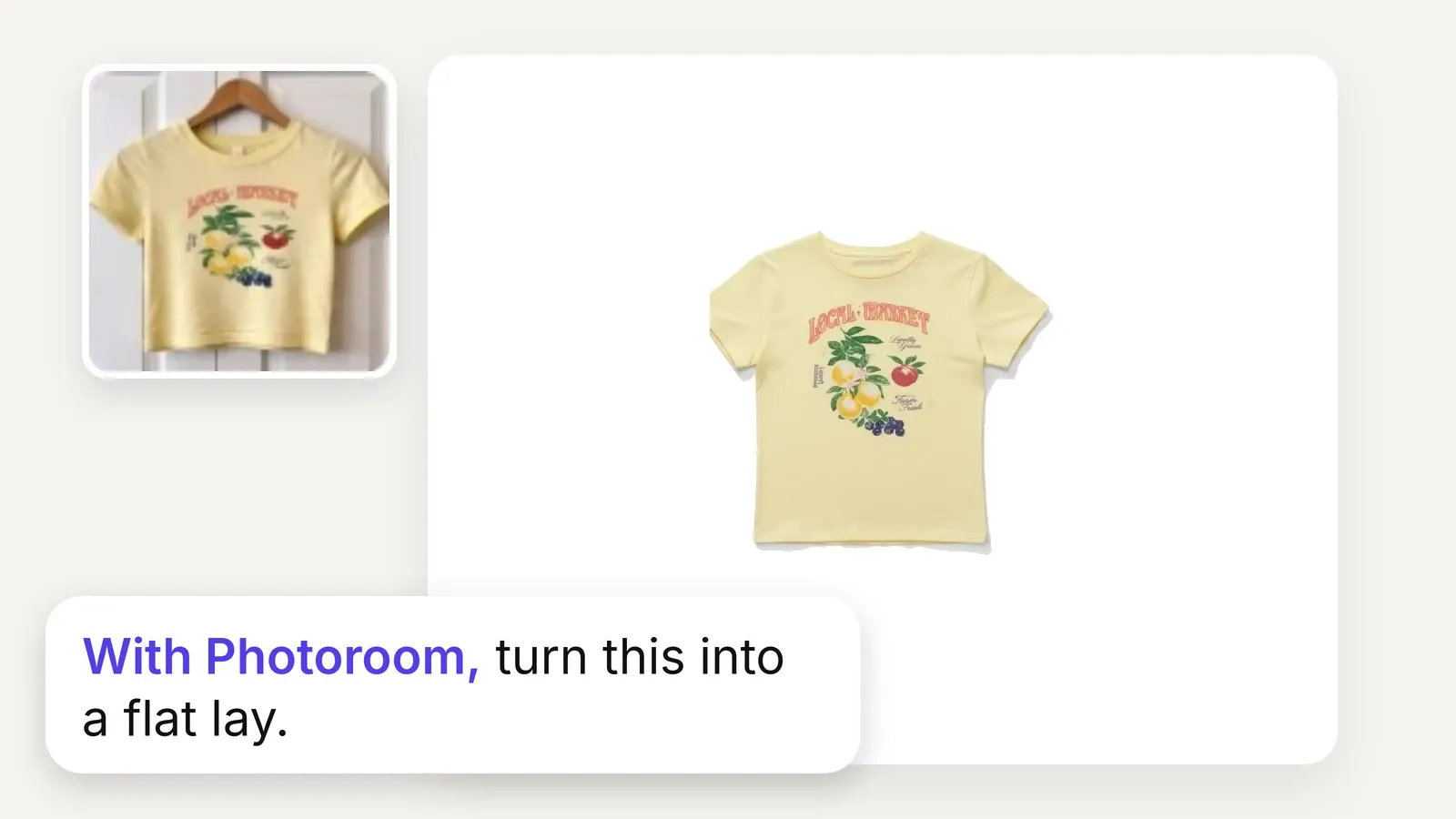
Yellow t-shirt on a hanger, then as a clean flat lay on white, with the prompt: turn this into a flat lay
Flat Lay
Top-down shots that show the whole garment.
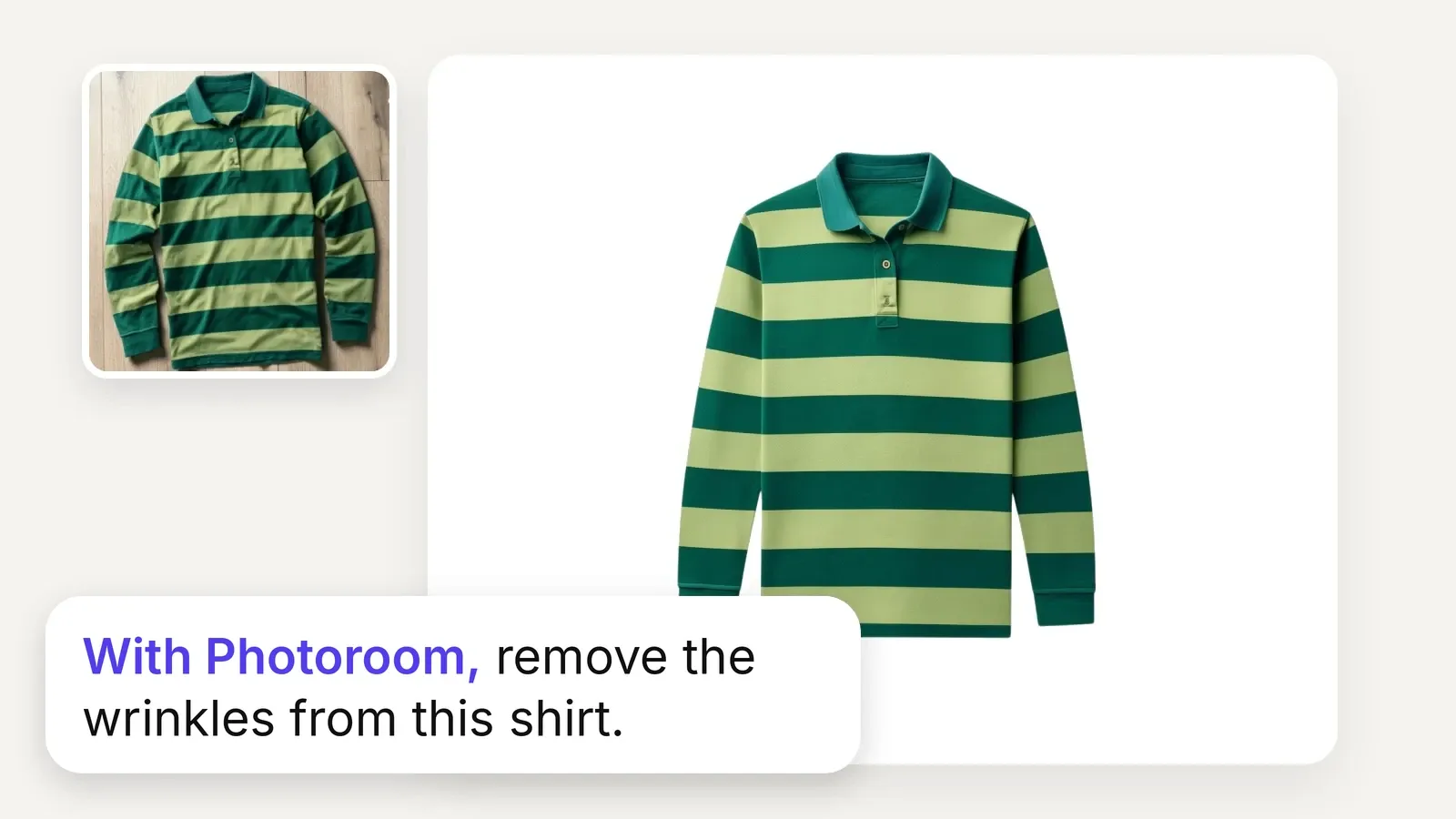
Wrinkled striped polo on a wooden floor, then smooth on white, with the prompt: remove the wrinkles
Ironing
Every garment looks freshly pressed.
Sunscreen tube on white, then a video frame of it held up against autumn leaves, with the prompt to make a video
Product video (Max and Ultra)
Motion for ads and social, from one still.

The same editing, already running at catalog scale

4x

faster market rollouts

89%

lower image processing costs

56%

higher conversion on listings

236%

increase in average order value

Exclusive to Enterprise plans

When a Claude workflow becomes a production pipeline
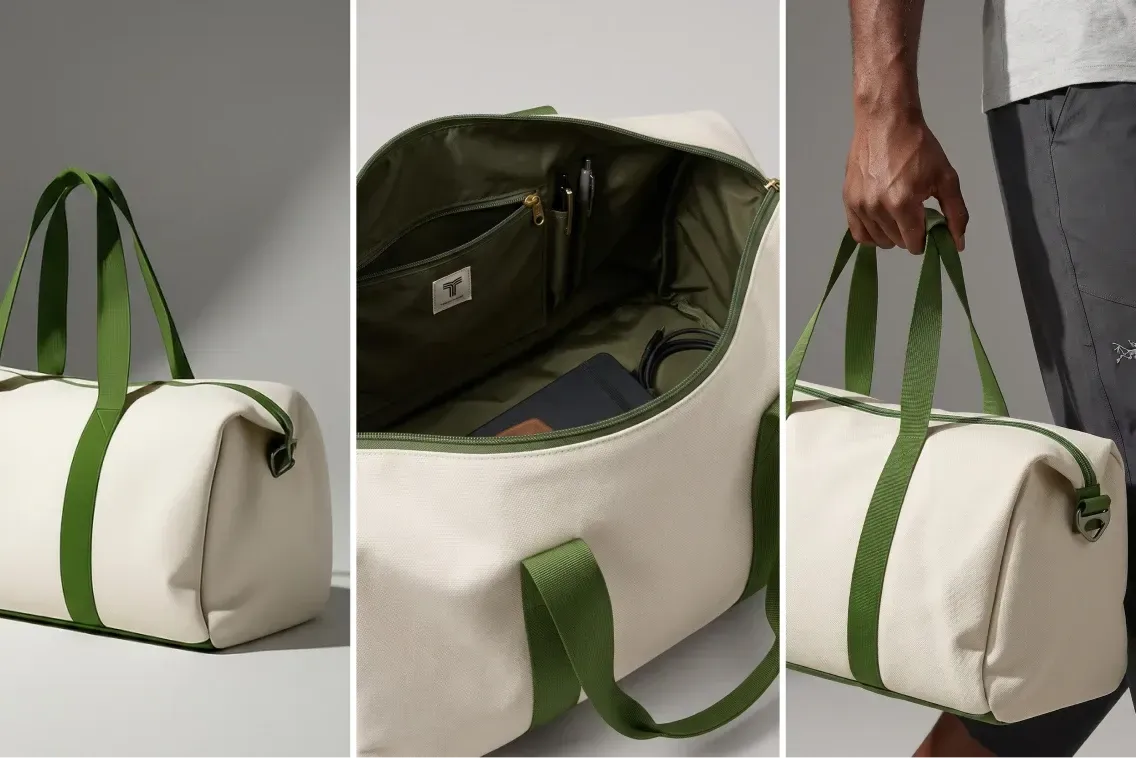
For teams editing whole catalogs, Enterprise plans can add tailored multi-tool workflows, checks on every output and product video.
Collage of a beige duffel bag with green straps, showing its exterior, spacious interior with pockets, and a hand holding it.
Visual Agents
Visual Agents execute the perfect workflow for your use case. They analyze every input, generate and edit, score the output, retry until it passes. Every visual runs the same loop and only the ones that pass reach your catalog.
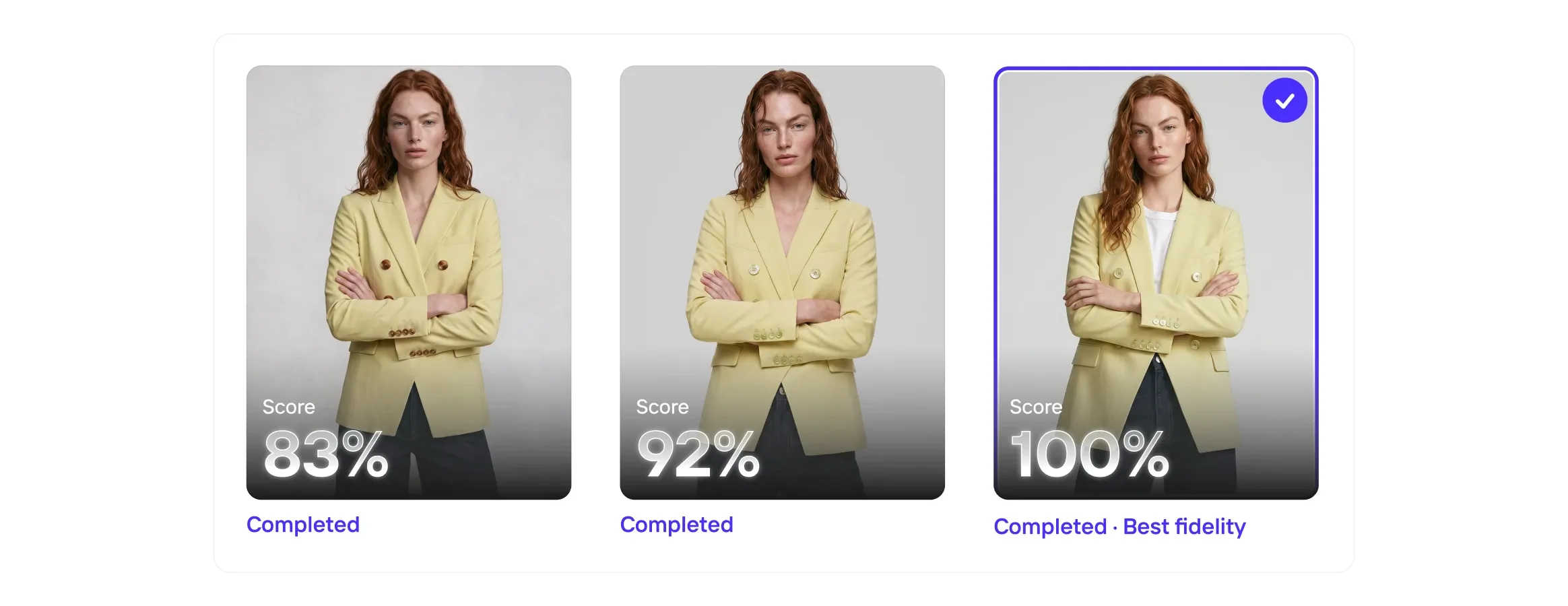
Three images of a woman in a yellow blazer, each with a completion score: 83%, 92%, and 100% labeled as "Best fidelity."
Visual QA
Even the best AI models get it wrong, so Visual QA scores every output for fidelity, catches the misses, and corrects the details before they reach your customers.
Collage of a woman in a white halter dress, a bowl of vibrant poke, and a woman holding a mustard handbag with hoop earrings.
Enterprise Guarantee
Pay only for outputs that pass. Every output is checked against your brief by our fidelity model, and anything that misses is regenerated before it reaches your team.
Four fashion items with play icons: a brown handbag, sage green mule, person in a gray shirt and cardigan, and white sneakers with orange accents.
Image to Video API
The Image to Video API turns static product photography into short-form video automatically. Submit a product image and receive a polished video with natural camera motion, animation, or configured effects.
Photoroom MCP

Start editing images in Claude

Add the connector and start editing in Claude. Editing a whole catalog, or need video? Talk to our team about Enterprise.

Frequently asked questions

Can Claude edit images?

Yes. With the Photoroom MCP connected, Claude can edit your images: remove the background from a photo, add shadows, iron garments, or make flat lay and ghost mannequin shots, and much more, in Claude, Cowork and Claude Code.

How does Photoroom work with Claude?

Photoroom connects to Claude through MCP (Model Context Protocol), an open standard for giving AI tools access to external capabilities. Once connected, Claude can call Photoroom tools like background removal, AI shadows, Pro Shot, virtual try-on, ghost mannequin, flat lay and more, directly within your conversation.

What tools does Photoroom give Claude?

On a Pro, Max or Ultra plan, Claude gets the Photoroom app's editing tools: Remove Background, AI Shadows, Pro Shot, Subject Edits, Virtual Try-On, Ghost Mannequin, Flat Lay, Ironing, Recolor and product video (Max and Ultra). On an API subscription, connect the API connector (mcp.photoroom.com/mcp-api) instead, and Claude calls the Photoroom API, from ironing to relighting. Claude picks the right tool for the edit you ask for.

Should I connect the Photoroom MCP or the API connector?

It depends on your Photoroom plan, not on whether you use Claude, Cowork or Claude Code. With Pro, Max or Ultra, connect https://mcp.photoroom.com/mcp: Claude gets the Photoroom app's editing tools, on your plan's credits. With an API subscription, connect https://mcp.photoroom.com/mcp-api while signed in to your API space: it passes your API key to Claude, so Claude calls the Photoroom API on your API credits.

Not on a plan yet? Choose by the work. Asking for images as you need them suits Pro, Max or Ultra; building edits into your own product or pipeline suits an API plan. On an Enterprise plan? Talk to your account team.

How does pricing work?

It depends on your plan. Edits through mcp.photoroom.com/mcp use Pro, Max or Ultra credits, and edits through mcp.photoroom.com/mcp-api use API credits from a separate API subscription. Plans and credits are on the pricing page, and API prices on the API pricing page. On an Enterprise plan? Talk to your account team.

How do I edit images in Claude?

Connect the Photoroom MCP to Claude, then upload an image, add a folder or provide a URL of images and describe the edit you want in plain English: "remove the background," "place this on a marble surface with a soft shadow," "put this jacket on a model." Claude calls the Photoroom tool that does it and returns the finished image in the chat. No design tools or parameters to learn; you just describe the result you're after.

What's the best MCP for e‑commerce product photos?

Photoroom is purpose-built for commerce imagery. Where general image tools generate pictures, Photoroom edits your actual product, keeping the item exactly as it is while fixing the background, lighting and shadows. It covers the jobs e‑commerce teams do daily: background removal, AI shadows, lifestyle backgrounds, ghost mannequin, placing apparel on virtual models and much more. The models are trained on commerce use cases, so results are listing-ready rather than approximate. It also works outside Claude: see every app it works with.

Can I batch edit through Claude?

In a chat, attach a few images or share links. For bigger batches, use Cowork or Claude Code and point Claude at a folder or a list of URLs. It can work through large batches, including on a schedule. See how in Claude Code.

How do I disconnect Photoroom from Claude?

Remove the Photoroom connector in Claude's connector settings; add it again and sign in to reconnect. If you connected the API connector, you can also delete its API key at any time from the API Dashboard in your Photoroom account.

Do I need a paid Claude plan?

No. Custom connectors work on every Claude plan. Free plans can add one custom connector.

Start selling at first sight

Get listing-ready product visuals in seconds.