

How to process hundreds of product images using the Photoroom API
In this article, I want to show you how Photoroom’s API can enable you to process hundreds of your existing product images in record time for your online marketplace or eCommerce platform. Integrating the Photoroom API reduced Selency an online marketplace’s product listing to realtime from at least 24 hours.
First, Get Your API Key
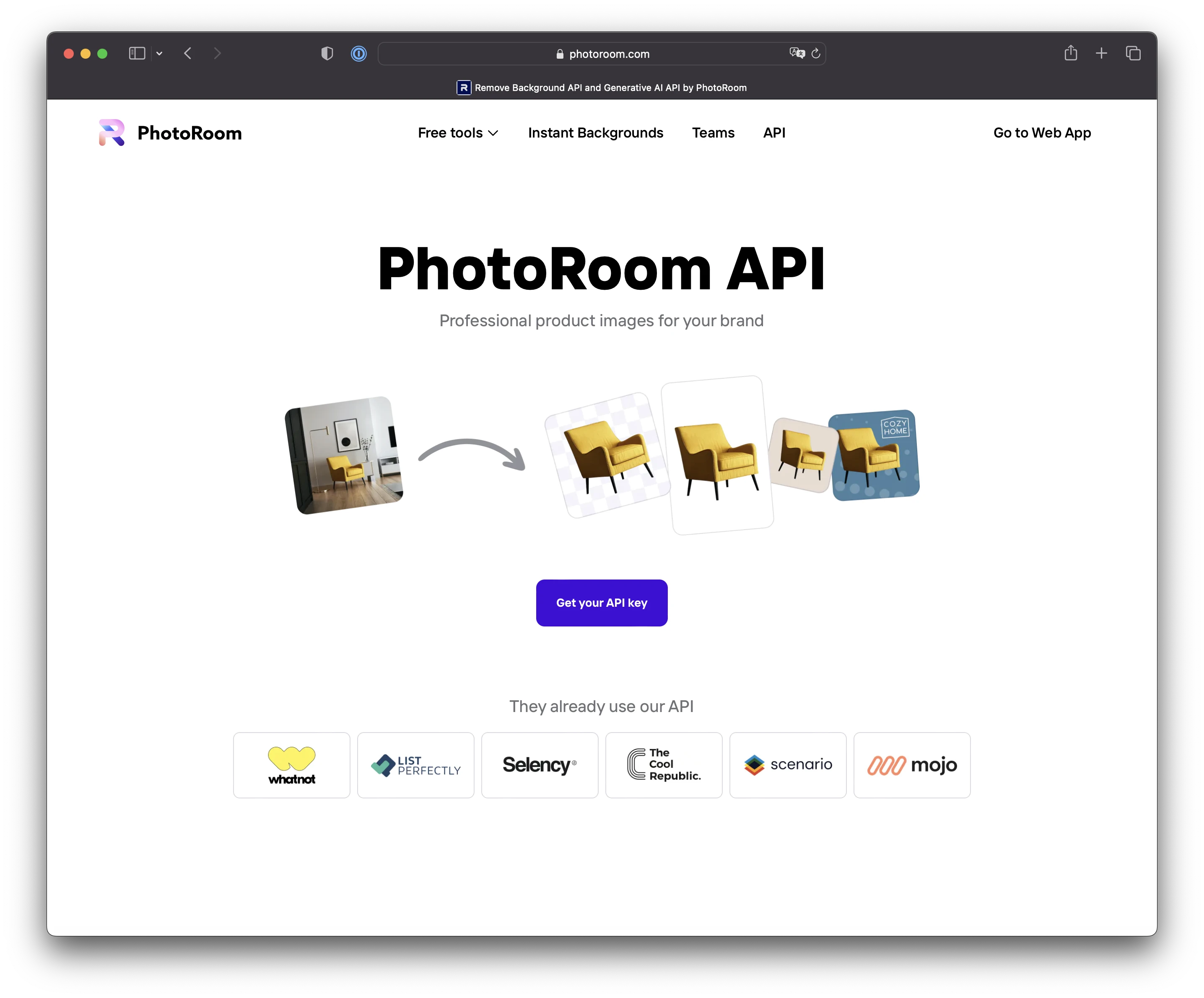
The first thing you need to do is go to https://www.photoroom.com/api to get your API key. It's a quick and easy process, and once you have your key, you're ready to move on to the next step.
Case 1: Your Images Are Stored Locally
If your product images are stored locally, then processing them through Photoroom’s API should be really easy.
We’re going to write a simple Python script that will:
iterate over all the files in a given directory
process each image through Photoroom’s API
download the result and save it locally
Let’s start with the most complex part: making the API call.
Here’s a Python function that will read the image at input_image_path, process it through Photoroom’s API, and finally save the result at output_image_path.
import os
import requests

API_KEY = "YOUR_API_KEY_HERE"

def process_image(input_image_path, output_image_path):
    try:
        url = "https://beta-sdk.photoroom.com/v1/render"

        with open(input_image_path, 'rb') as image_file:
            files = { "imageFile": image_file }

            payload = {
                # Square white background, 10% padding
                "templateId": "8c30bbc9-196a-4c9f-ab12-03f9dd28f28a"
            }
            headers = {
                "Accept": "image/png, application/json",
                "x-api-key": API_KEY
            }

            response = requests.post(url, data=payload, files=files, headers=headers)
            response.raise_for_status()

            with open(output_image_path, 'wb') as f:
                f.write(response.content)
                print(f"Image downloaded and saved to {output_image_path}")

    except requests.RequestException as e:
        print(f"Error: {str(e)}")
        return str(e)
For more details on how the
templateIdargument works, I recommend reading this tutorial.
Then, the next step will be to iterate over all the images stored in a given directory and for each of them call the function process_image():
def iterate_over_directory(directory_path, result_directory):
    for root, _, files in os.walk(directory_path):
        for file in files:
            file_path = os.path.join(root, file)

            result_file_name = os.path.splitext(os.path.basename(file_path))[0] + '.png'
            result_path = os.path.join(result_directory, result_file_name)
            process_image(input_image_path=file_path, output_image_path=result_path)
Finally, all that’s left to do is to write the code that will call the function iterate_over_directory() with the correct arguments:
if __name__ == "__main__":
    INPUT_DIRECTORY = "/path/to/input_images_directory"
    OUTPUT_DIRECTORY = "/path/to/result_images_directory"

    if not os.path.exists(result_directory):
	      os.makedirs(result_directory)

    iterate_over_directory(directory_path=input_directory, result_directory=output_directory)
Case 2: Your Images Are Hosted Online
If your product images are already hosted online (maybe using a Digital Asset Management solution), you will first need to export the URLs of your images into a spreadsheet format.
Then, we’re going to write a simple Python script that will:
parse the spreadsheet to collect the image URLs
process each image through Photoroom’s API
download the result and save it locally
Let’s start by writing a Python function that will take an image_url as its argument, will process it through Photoroom’s API and finally save the result at output_image_path.
import os
import requests

API_KEY = "YOUR_API_KEY_HERE"

def process_image(input_image_url, output_image_path):
    try:
        url = "https://beta-sdk.photoroom.com/v1/render"

        querystring = {
            "templateId": "8c30bbc9-196a-4c9f-ab12-03f9dd28f28a",
            "imageUrl": input_image_url
            }

        headers = {
            "Accept": "image/png, application/json",
            "x-api-key": API_KEY
        }

        response = requests.get(url, headers=headers, params=querystring)
        response.raise_for_status()

        with open(output_image_path, 'wb') as f:
            f.write(response.content)
            print(f"Image downloaded and saved to {output_image_path}")

    except requests.RequestException as e:
        print(f"Error: {str(e)}")
        return str(e)
For more details on how the
templateIdargument works, I recommend reading this tutorial.
From there, the next step is to iterate over the spreadsheet that contains the image_urls.
Here we will follow a simple strategy: iterate over all the sheets and look for columns with a specific column_name:
def iterate_over_spreadsheet(spreadsheet_path, column_name, result_directory):
    # Load the spreadsheet
    wb = openpyxl.load_workbook(spreadsheet_path)

    image_urls = []

    # Loop over all sheets in the workbook
    for sheet_name in wb.sheetnames:
        sheet = wb[sheet_name]

        for col_num, col_cells in enumerate(sheet.iter_cols(values_only=True)):
            if col_cells[0] == column_name:
                break
        else:
            print(f"Column {column_name} not found in sheet {sheet_name}.")
            continue

        for cell in sheet.iter_rows(min_row=2, min_col=col_num + 1, max_col=col_num + 1):
            if cell[0].value:
                image_urls.append(cell[0].value)
And once we’ve parsed the spreadsheet to collect the image_urls, we can write the second part of the function, which iterates over image_urls and performs the API calls:
for image_url in image_urls:
        # Extracting the filename from the URL, stripping query parameters if any
        base_name = os.path.basename(image_url.split('?')[0])

        # Getting the filename without its original extension and appending '.png'
        result_file_name = os.path.splitext(base_name)[0] + '.png'
        result_path = os.path.join(result_directory, result_file_name)

        process_image(input_image_url=image_url, output_image_path=result_path)
Finally, the last step is to call the function iterate_over_spreadsheet() with the correct arguments:
if __name__ == "__main__":
    SPREADSHEET_PATH = "/path/to/input_spreadsheet.xlsx"
    COLUMN_NAME = "PRODUCT_PICTURE"
    OUTPUT_DIRECTORY = "/path/to/result_images_directory"

    if not os.path.exists(OUTPUT_DIRECTORY):
        os.makedirs(OUTPUT_DIRECTORY)

    iterate_over_spreadsheet(spreadsheet_path=SPREADSHEET_PATH, column_name=COLUMN_NAME, result_directory=OUTPUT_DIRECTORY)
Conclusion
We hope these code snippets will help you manage large batches of product images without too much of a headache!
If you plan to give our API a try, feel free to join our Slack Community, where you'll be able to reach our engineers.
And if you're curious to find out how Selency, an online marketplace, reduced their time to market to real-time from 24-48 hours with the Photoroom API, we recommend reading our case study.
Check out our Photo editor API offering:

Vincent PradeillesSenior Software Engineer @ Photoroom