

How to add stickers to WhatsApp
Emojis have been the unsung heroes of our digital conversations for a while now, but there's a new kid on the block – stickers! These fun, expressive images are a fantastic way to add pizzazz and personality to your WhatsApp chats. If you've been wondering how to level up your messaging game, stick around for a relaxed walkthrough on adding stickers to WhatsApp on Android, iOS, and the web.
What are stickers actually?
Depending on your age, you might think about stickers differently. I was first thinking about classical stickers with a white border until my Gen Z colleague revealed the world of stickers to me. So it is basically the evolution of an emoji, but more personalized and fun and used within messaging apps to express emotions and reactions, or convey messages in a more fun, visual way during conversations.
How to create a digital sticker for WhatsApp
Firstly you need to have a picture that you want to turn into a sticker – it can be a picture of your dog, any object in your household, or even a picture of you! You can turn literally everything into a sticker.
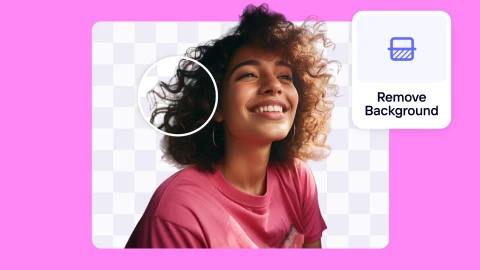
Then you need to remove the background of this image, using the tools that you have available like Photoshop, Paint or an AI photo editor like Photoroom. Depending on which tool you use, you will end up with an image with a transparent background. You can then personalize it even further with drawings, text, or other fun images.
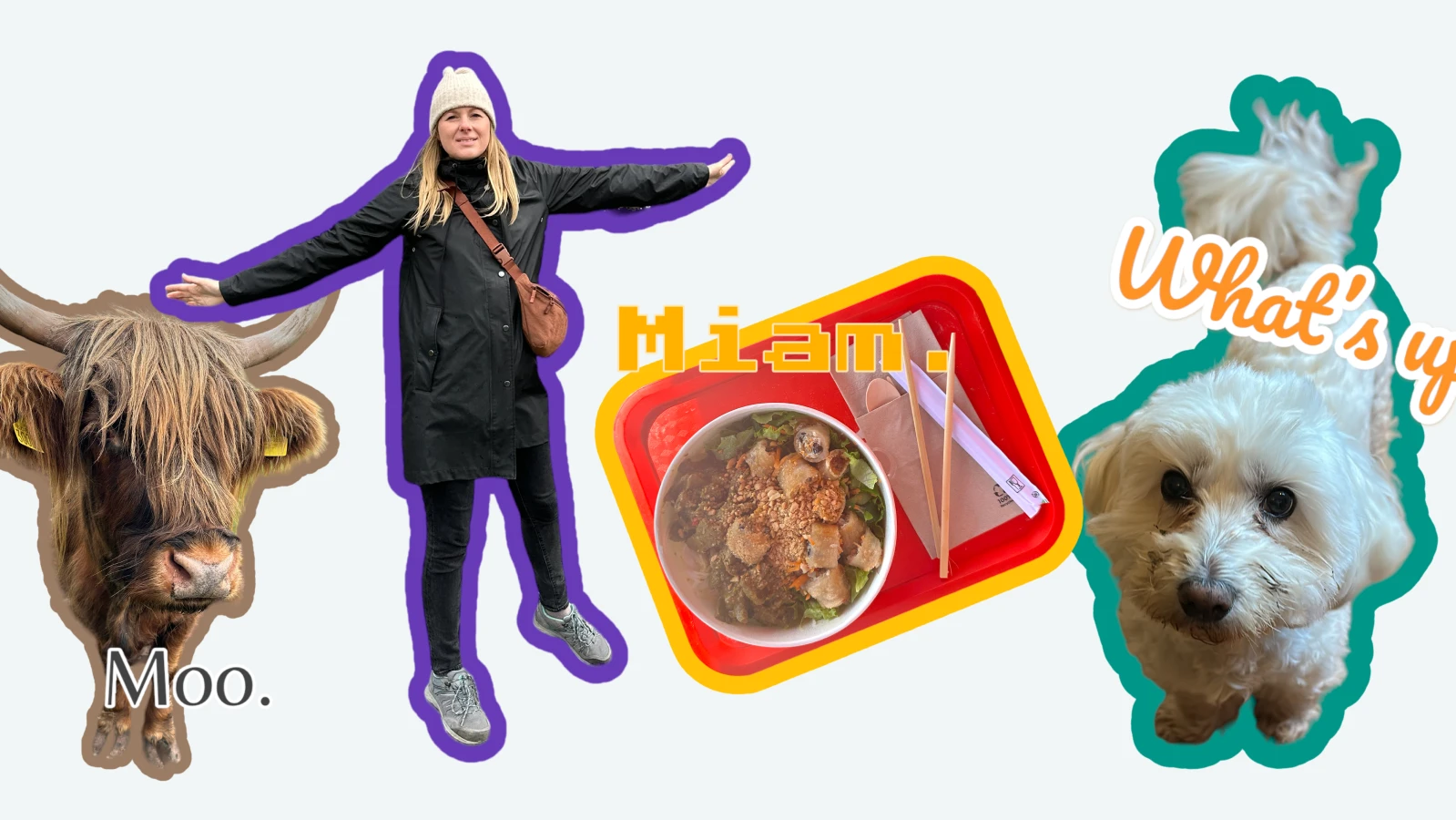
Look at the example I created with Photoroom:

Further reading: Boost productivity, creativity, and sales with 16+ AI tools for e-commerce (2024)
Uploading the stickers into WhatsApp
Depending on your device and preference for mobile or desktop, there are various methods to upload stickers to WhatsApp. For those looking to curate entire collections, leveraging third-party tools is advisable. However, in my case, I simply aimed to craft a handful of enjoyable stickers to share with my friends and family.
Android: Sticker fun for your Android device
Generating stickers on Android requires a workaround, given its a less straightforward process compared to iOS. Nevertheless, there's a clever solution for the creatively inclined!
Start by accessing WhatsApp via your phone's browser.
Locate and select the ‘+’ icon, opting for “New stickers.”
Upload your preferred image and share it with any recipient in your chat.
Post-sending, return to your phone and perform a prolonged press on the sticker within the chat. Save it as a favorite.
By adding the sticker to favorites, you can conveniently use it on your Android device whenever the need arises!
iOS: Sticker swag for iPhone users
iPhone users, take advantage of the convenience! WhatsApp's sticker functionality is fully accessible on iPhones. Within your photo library, a simple action achieves the desired effect: press and hold your thumb on the object you wish to extract from an image or one that you have previously created in an editor. Subsequently, an option will appear, allowing you create a sticker quickly.
To share your freshly created sticker:
Open WhatsApp and select the desired chat.
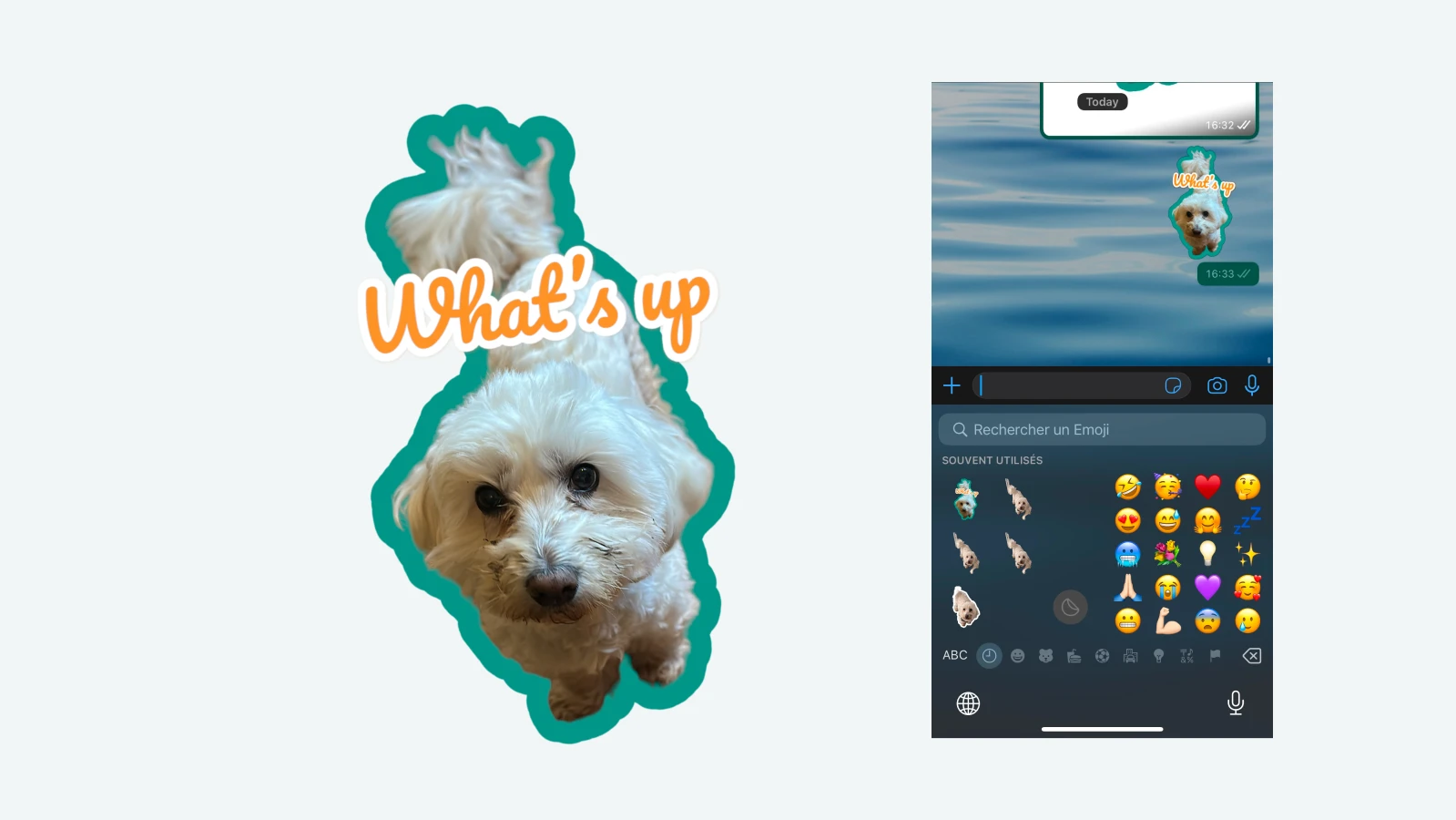
Tap the keyboard and select the emoji icon.
Swipe right to reveal your assortment of stickers.
Choose your sticker, and with a tap, witness your image seamlessly integrate into the conversation.
Web: Sticker magic on your browser
For those glued to their desktops or laptops, WhatsApp’s web version is a savior.
Start by logging into WhatsApp through your browser, then locate and click on the '+' icon, followed by selecting “New Sticker.”
Upload the image you've created.
Once uploaded, tap the send button to share your sticker.
Notably, your image is now saved, allowing you to share it across various chats as well. This feature enables easy access and sharing within your conversations.
Sometimes pictures speak a lot louder than just words. Whether you're using an Android, iOS, or web device, expressing yourself has never been simpler and more fun. Have a blast experimenting with different sticker packs that are already available in WhatsApp for free, and unleash your inner artist by creating your own stickers with tools like Photoroom for that extra pop!
Related articles:
- How to change the background in Instagram story

Tine DudekI am a photography enthusiast and love to experiment with AI tools. Here at Photoroom, I write about digital trends in the AI photo world.